Purchase notice
Google AI Pro 5TB activation service guide
Read this before ordering. This page explains account requirements, required order information, account preparation steps, safe usage notes, and service responsibility.
Account requirements
- Your Google account should be at least 1 year old.
- The account should not have an active Google membership or AI Pro subscription.
- This offer is only for accounts without payment profiles. Please make sure all existing payment profiles in the account have been closed.
Go to close payment profile
Information needed after payment
- PayPal account name used for payment.
- Contact email for activation result notice.
- Google subscription account email.
- Account access details are handled only through the agreed private handoff after order matching.
- Backup codes should be prepared in advance and shared only through the agreed private handoff if required.
Safety notes
- Submitted information is used only for this membership subscription service.
- After activation is completed, change your password as soon as possible.
- Keep 2-step verification enabled. You may replace the 2FA key after completion.
Disclaimer
- This is an independent activation assistance service, not an official Google sales page.
- Google AI Pro is an official Google plan and may change over time. Final benefits are subject to Google's official plan details.
- This recharge channel is provided for specific channel access and is not an official Google checkout channel. In very rare cases, account abnormality may occur; if it happens, please contact Google official support for account handling, and we can provide refund support.
1
Close payment profile
First open the official Google payments settings page and check whether any payment profile exists. If there is no payment profile, it should look like Step 03. If a payment profile exists, follow the steps below to close all payment profiles.
👉Go to google payment settings👈
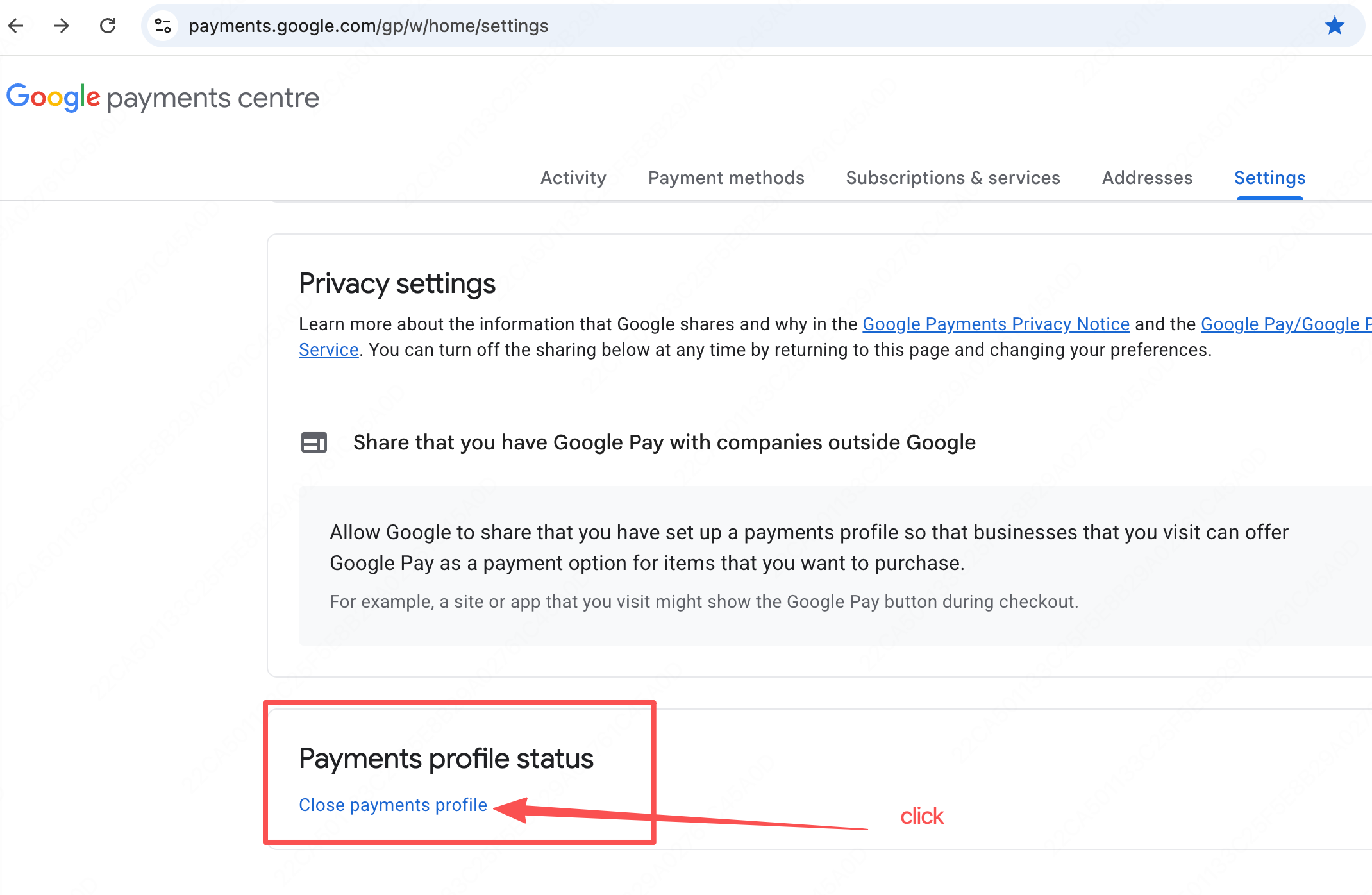
01 Scroll to the bottom and click Close payments profile.
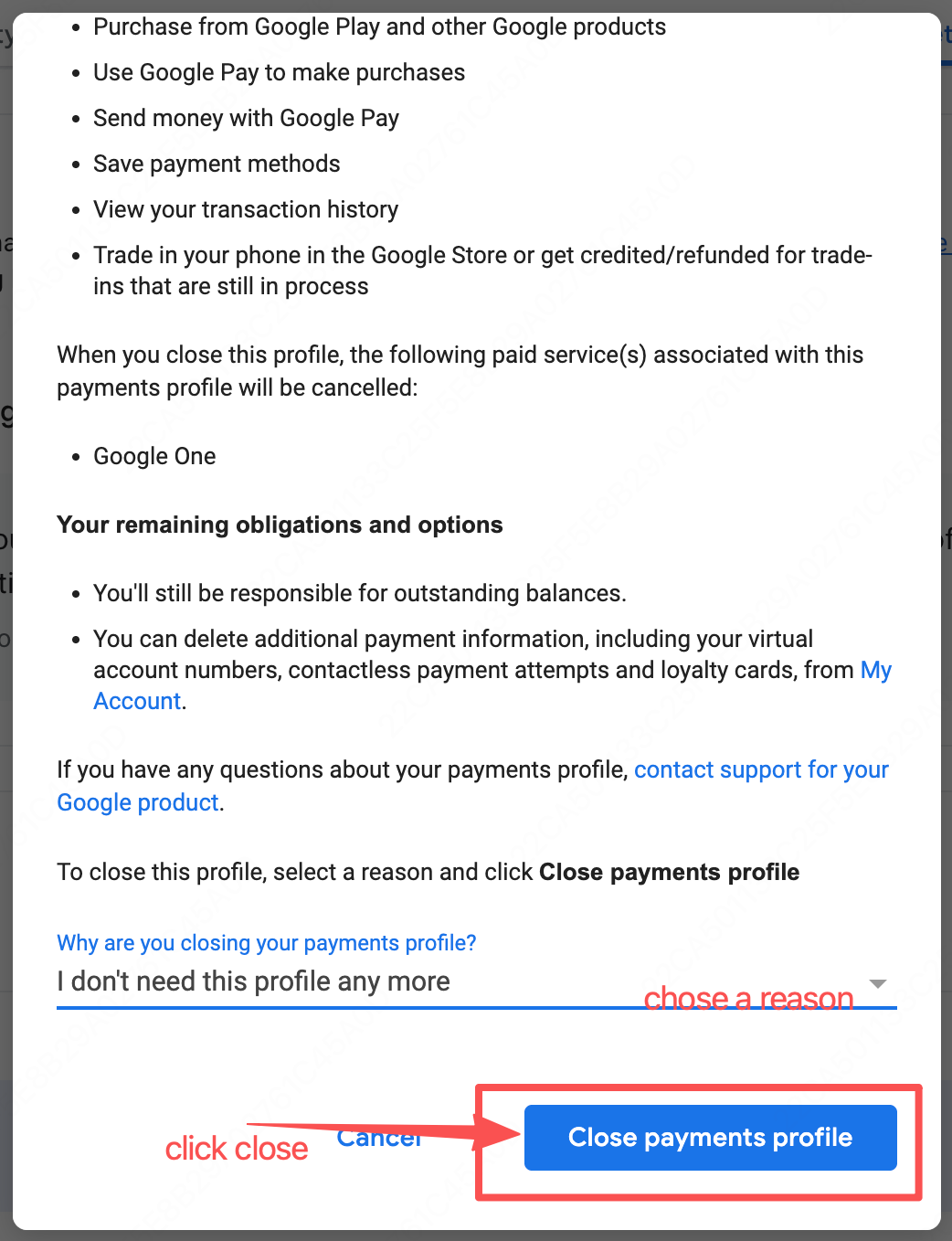
02 Choose a reason, continue, and submit the close request.
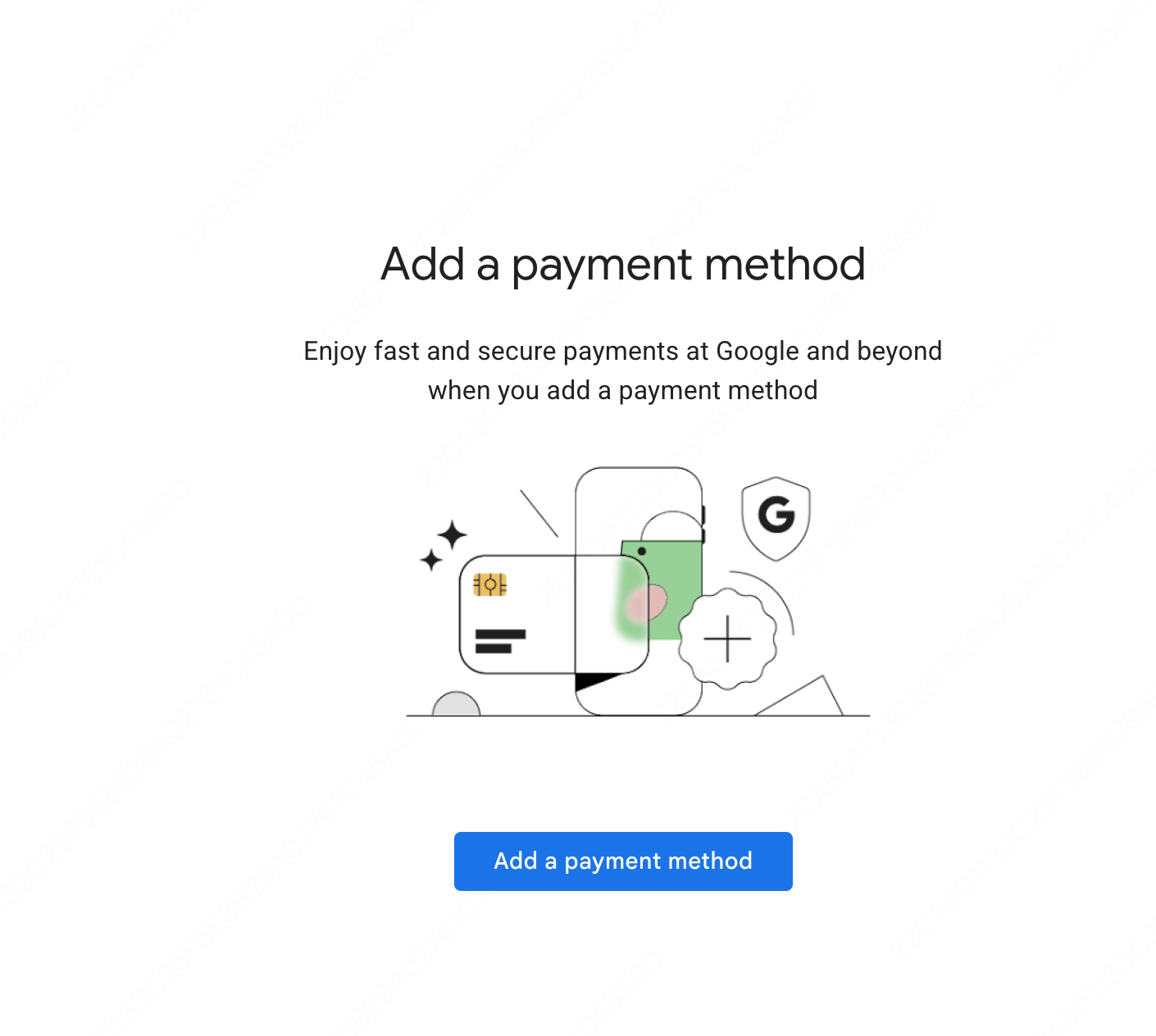
03 Check again after closing. When no payment profile remains, the page shows Add a payment method.
2
Confirm 2-step verification
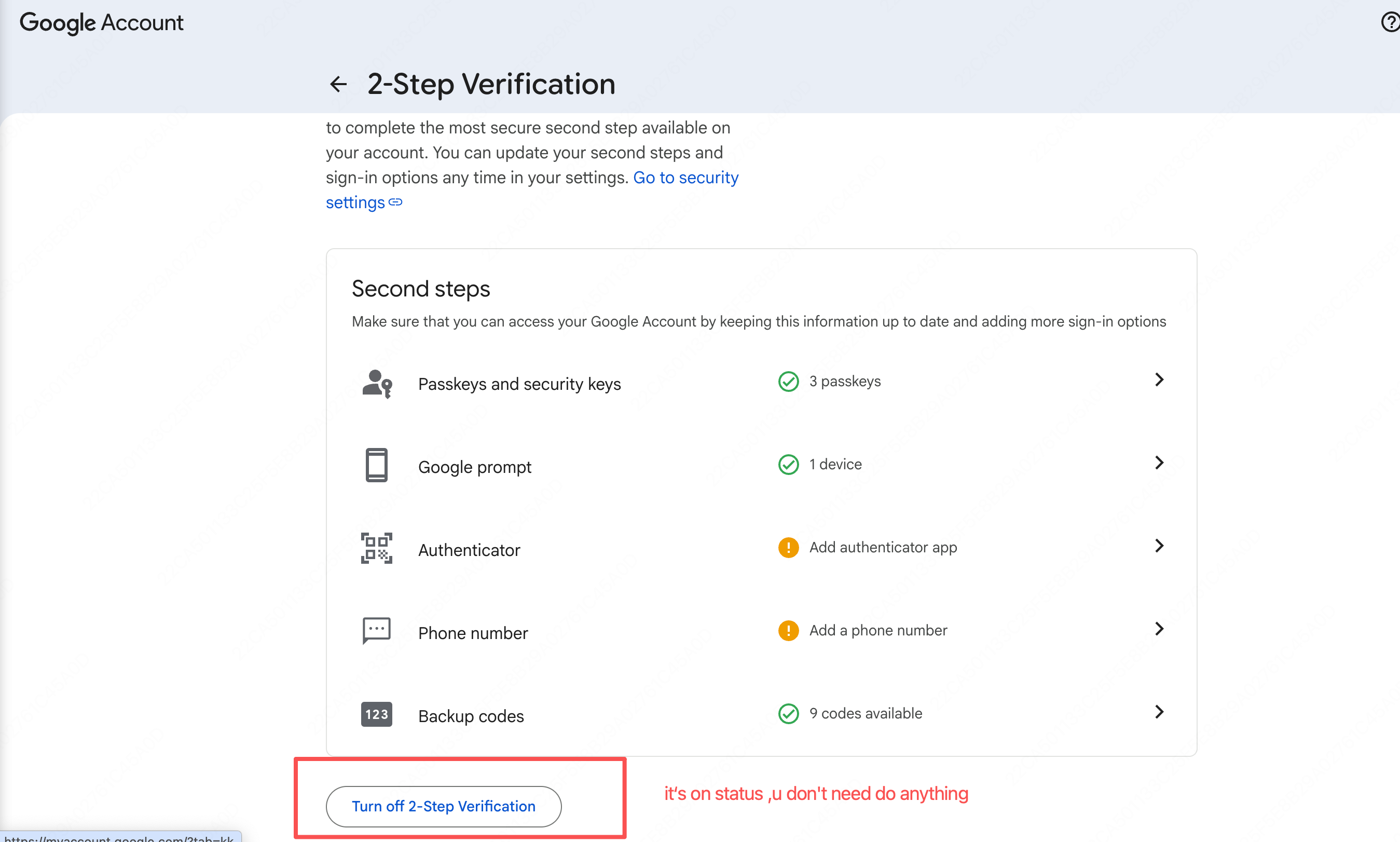
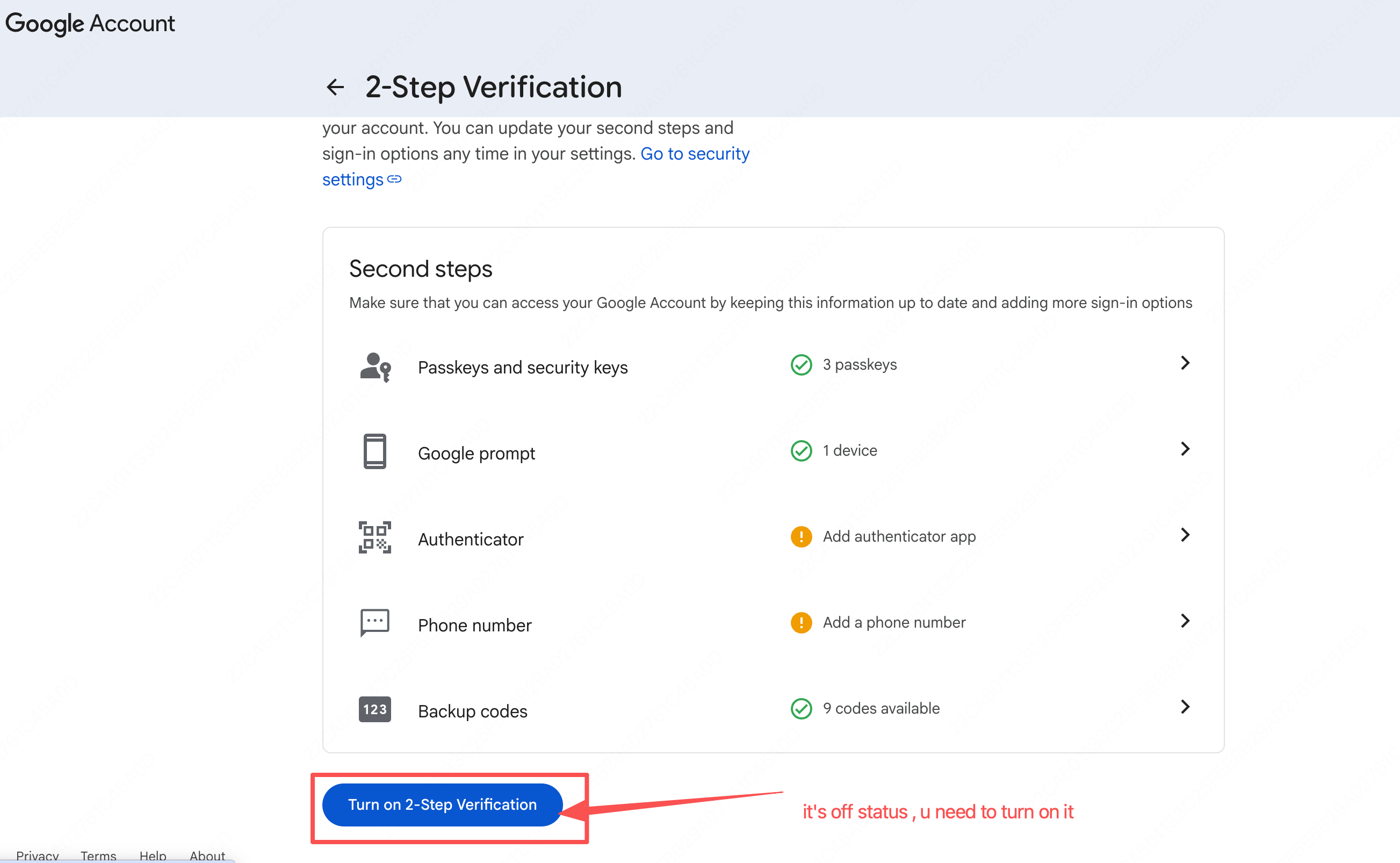
Check the current status first. If it is off, click the blue button and complete Google's setup flow.
👉Open google 2-step verification👈
Enabled If the button shows Turn off 2-Step Verification, no action is needed.
Off If the button shows Turn on 2-Step Verification, click it to enable 2FA.
3
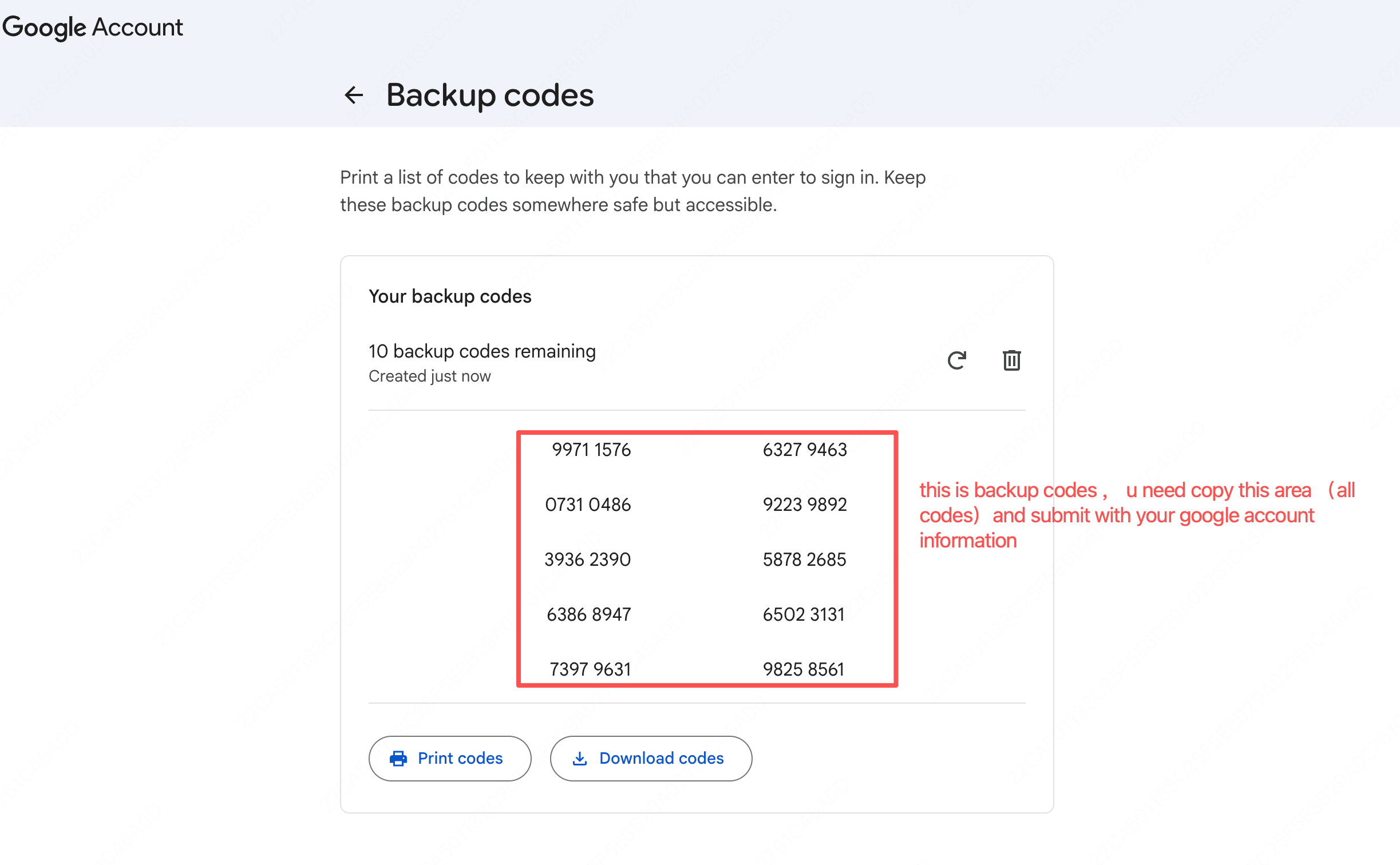
Generate backup code
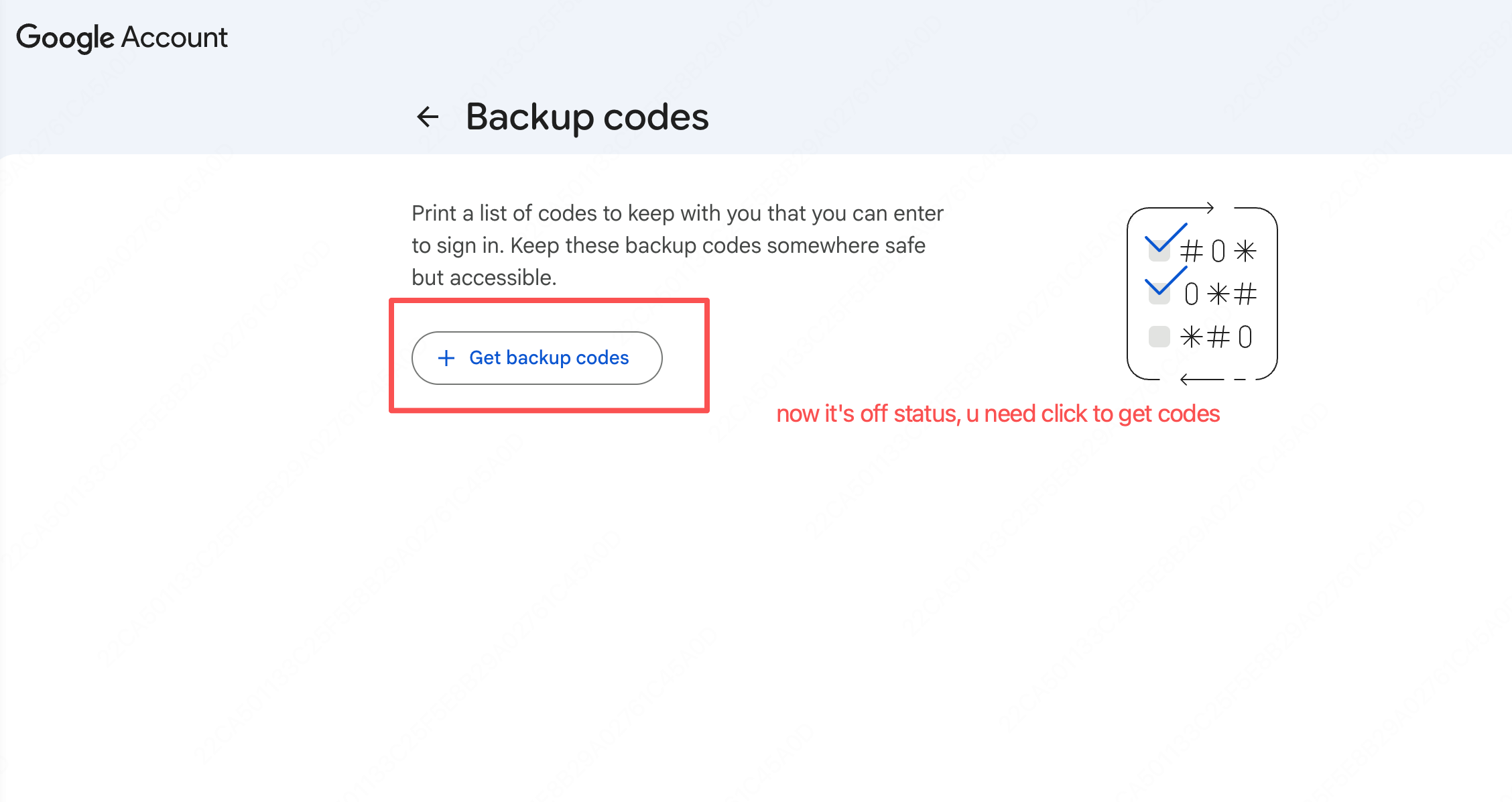
Prepare a fresh backup code set. If codes already exist, refresh them first, then copy the full code list.
👉Get backup codes 👈
No code If backup codes are not available, click Get backup codes first.
Ready If backup codes are available, refresh them if needed and copy all code groups.